
Start from where the design will be shown
A design is resized for a placement, and the placement publishes its own numbers. Start there and let them decide the canvas, instead of opening the last export and nudging its width. For a link share, Meta's crawler documentation states the requirement directly: "The minimum allowed image dimension is 200 x 200 pixels" and "The size of the image file must not exceed 8 MB", with the recommendation to "use images that are at least 1200 x 630 pixels for the best display on high resolution devices" and to "keep your images as close to 1.91:1 aspect ratio as possible to display the full image in Feed without any cropping" (Images in Link Shares: Meta for Developers, page updated 30 June 2026, accessed 14 September 2026).
Pinterest asks the same photograph for a different shape: "We recommend using a 2:3 aspect ratio, or 1000 x 1500 pixels", followed by a warning that "Pins with an aspect ratio greater than 2:3 might get cut off in people's feeds" (Pinterest product specs, accessed 14 September 2026). The two boxes are not variations of each other: 1.91:1 and 2:3 are different frames, and no crop converts one into the other without throwing away most of the picture.
So the first line of the job is not "make it smaller" but a list: where the image appears, the pixel box the platform names, the aspect ratio it asks for, and the ceiling it puts on the file. Everything after that is either a re-flow or an enlargement, and it helps to know which one you have chosen before the layout starts moving.
Rebuild the layout instead of scaling it
Stretching a canvas keeps the artwork and changes the shape, which is why the result usually reads as slightly wrong rather than clearly broken: the type is a little wider, the margins are a little uneven, and a face that was round now looks pressed. Scaling is only a safe move while the aspect ratio is unchanged. A 600 × 315 export of a 1200 × 630 layout is a scale, half the pixels and the same proportions. Changing the ratio is a rebuild.
Protect two things while you rebuild. The first is one message: the line a reader must not miss, whether that is an event date, a product name or a number. The second is a margin band that stays clear of every edge, including the interface the destination draws over the image, the profile row a story puts at the bottom or the caption block a pin puts beneath. Place those two first, then fit the rest of the composition around them, and decide early which element gets dropped when there is no space left.
Not every element can be redrawn at a new size. A photograph can be cropped, because the meaning is spread across it. A diagram, a chart or an interface screenshot usually cannot, because its meaning sits at particular pixels: a 3 px hairline, an axis label, a menu item. MDN's format guide makes the same point about how such files have to be written: for "screenshots, diagrams, logos, and line art, prefer lossless encoding, as blurring and colored fringes around text and sharp edges are very visible" (Image file type and format guide, MDN, page last modified 11 September 2026, accessed 14 September 2026). A screenshot that has been blown up to fill a taller canvas fails for exactly that reason, one step before anyone chooses a file format.
Set export dimensions before moving elements
Fix the export box and the scale multiplier before you touch a single element. If the multiplier is decided last, the type gets sized twice, the second pass is done against a different number of pixels, and the small text ends up below what the reader can actually read. Deciding the box first also settles the question of how much of the layout has to change: a 1000 px wide export from a 1200 px design is a 0.83× scale, while a 3840 px wide export from the same design is a 3.2× enlargement of pixels that were never recorded.
Most design tools let one selection carry several export configurations at the same time, so the sizes can be written down before any element moves. Figma's export documentation states it plainly: "You can add as many export configurations to a selection as needed" (Export static designs from Figma, accessed 14 September 2026). The same page records a detail that matters once a crop has to grow or shrink after a resize: "Slices also let you control padding around the exported object. Otherwise the padding is computed from the overall shape bounds. The latter adjusts when the shape changes size, whereas the slice is absolute." Padding tied to the shape's own bounds moves when the design is resized; padding set on an explicit slice does not. If the export is meant to be reproducible, the second kind is the one to use.
Export a test file at the target box before the layout work is finished. One export early is cheaper than discovering at the end that the destination wants 1000 × 1500 and the composition was built for a square.
Write the export box and the multiplier into the preflight list before the layout changes, so both are decisions instead of leftovers.
Re-flow text after every size change
Every change of size re-breaks every line of text, and the two things worth checking each time are where a line broke and how small the smallest readable line has become at the size a reader will see it. Both are properties of the export rather than of the editor preview, which scales the canvas to whatever monitor is open in front of you.
The site's own card set shows how quickly the line count moves with the box. Exported from the same words and the same caption rules, the link-card version runs to two lines, while the square and the vertical versions run to three lines each, and the vertical one carries a 420 px caption band. Same text, different number of lines, different amount of space left for the headline. If the caption is allowed to push the headline upward, the message that was supposed to survive is exactly the thing that gets squeezed.
Then check the overflow, which is a short list of visible failures: a line that clips at the edge of its box, a label pushed onto a second line it was never sized for, a character that disappeared because the chosen font has no glyph for it, a hyphen or a bullet that ended up alone at the start of a line. All of these are cheap to fix while the design is open and expensive to notice after the image has been published.
A last pass at the destination size, not at 100% zoom, is what catches them. Extreme zoom is useful for retouching a single edge and misleading for judging whether a caption is readable: text that is comfortable at 400% is often unreadable in a 1080 px wide feed, which is how most readers will meet it.
Worked example: one design, three destinations
The set below is the export set this site produces for one article, and the numbers in it were read from the files on 14 September 2026. It starts from the site's own card source, assets/social.jpg (1200 × 630 pixels, 45,034 bytes) and produces three files, all JPEG, sharing one font pair, one caption band colour and one 62 px side margin:
| Destination | Pixels | Caption | Exported bytes |
|---|---|---|---|
| Link card | 1200 × 630 | 2 lines | 49,283 |
| Feed square | 1080 × 1080 | 3 lines | 45,520 |
| Vertical story | 1080 × 1920 | 3 lines, 420 px caption band | 69,963 |
Two of the three match a published platform box exactly. The 1200 × 630 is the size Meta names for high-resolution link display at 1.91:1, and the 1080 × 1920 is the size Pinterest recommends for a full-bleed pin: "we recommend using 1080x1920 pixel size (9:16 ratio)" (Pinterest product specs, accessed 14 September 2026). The square has no specification page this pass could read, so it is recorded here as this site's own feed size rather than as a platform requirement. That is the honest form of the entry: a size without a source is a size, not a spec.
Now the arithmetic that decides whether the source is even large enough to do this. A 2:3 box that keeps the full height of a 1200 × 630 original is 420 × 630 pixels: 420 of the 1200 columns survive, and those 420 columns then have to be drawn at 1000 px wide, an enlargement of about 2.4×. A 9:16 box keeps 354 columns out of the same 1200, under a third of the picture, and enlarges them about 3.0×. Nothing about that arithmetic changes because the preview looks acceptable on a laptop screen. It is the reason the first rule of this guide is to keep the full-resolution original and export every size from it, rather than exporting again from the PNG that was posted last month.
Inspect edges and transparency after resizing
Two things survive a resize without being decided by it: the edge of anything that was cut out of its background, and whether the export still carries transparency at all. Check both after the resize, at the destination size, working on a copy with the untouched original open beside the result. Then look at the cutout twice (once over a light backdrop and once over a dark one) because a bright halo vanishes against white and a dark fringe vanishes against black, and the finished design will only ever show one of the two.
Sort the edges before judging them, since a single tolerance does not fit all three kinds. Hard edges (packaging, furniture, lettering) are either clean or visibly stepped, and there is no middle. Soft edges (hair, fabric, fur) are never exact; the question is whether they look plausible at the size the reader sees. Transparent regions (glass, reflections, a lightbulb) have to keep whatever they had before the resize, and if the automatic pass removed the translucent part of the subject, the fix is to restore it from the original rather than to invent an edge where there was none.
Two failures are easy to miss at thumbnail size. A ground shadow deleted along with the background leaves the object hovering above nothing, and a patch of the old background left inside a handle or between two fingers pulls the eye harder than a slightly soft outer edge ever does. Fix them in the copy, or change the decision: a plainer backdrop, or a different source photograph, beats a glow drawn over the damage. Edges also scale with the image (shrinking hides a bad edge, enlarging exposes it) which is why this pass comes after the resize and not before it.
The format then decides what can survive at all. JPEG cannot carry a cutout, because it has no alpha channel: MDN's format guide states flatly that "JPEG does not support an alpha channel" (Image file type and format guide, last modified 11 September 2026, accessed 14 September 2026). PNG can, and costs the most bytes; WebP and AVIF carry transparency with smaller files, and Google's WebP documentation notes that "Lossless WebP supports transparency (also known as alpha channel) at a cost of just 22% additional bytes" (WebP, accessed 14 September 2026). The destination can overrule all of that: Pinterest accepts only ".PNG or .JPEG" for pin images, so a smaller WebP or AVIF cutout has to be re-exported before it can be pinned, whatever it saves.
Compare exports at identical dimensions
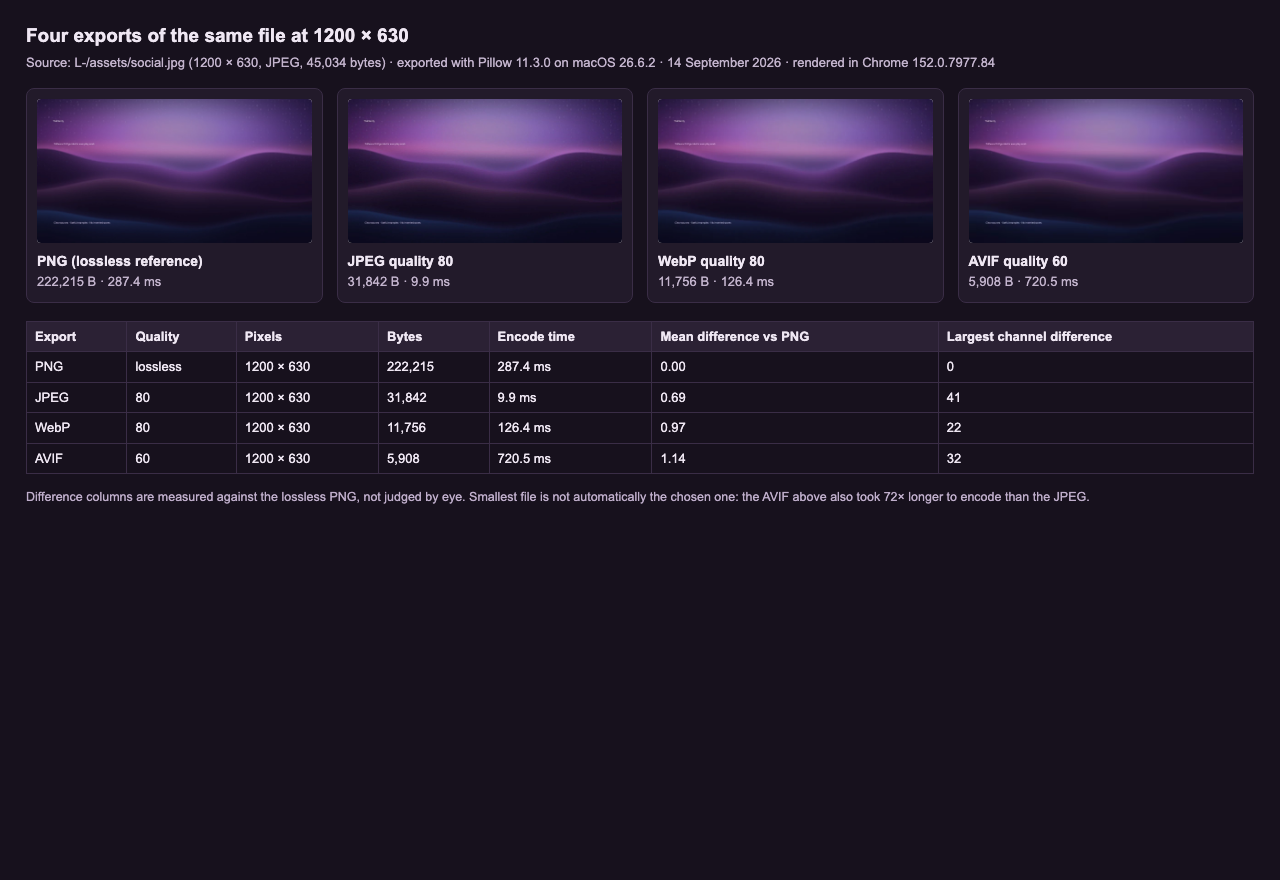
Change one variable at a time. Eight exports of one image were produced at the same 1200 × 630 box (identical pixels, different format and quality setting) and each was measured against the lossless PNG reference. The byte counts are the sizes of the files on disk; the difference columns are computed from the pixels, not judged by eye:
| Export | Quality | Bytes | Mean channel difference | Largest single-channel difference |
|---|---|---|---|---|
| PNG | lossless | 222,215 | 0.00 | 0 |
| WebP | lossless | 156,858 | 0.00 | 0 |
| JPEG | 82 | 35,789 | 0.57 | 36 |
| JPEG | 60 | 16,520 | 1.18 | 59 |
| WebP | 82 | 12,808 | 0.94 | 22 |
| WebP | 60 | 8,402 | 1.14 | 38 |
| AVIF | 63 | 6,613 | 1.11 | 27 |
| AVIF | 40 | 3,257 | 1.56 | 60 |
Two readings matter here. The lossless pair first: the WebP file is 156,858 bytes against the PNG's 222,215, about 29% smaller, which runs in the same direction as Google's published "26% smaller in size compared to PNGs" figure for lossless WebP. Then the lossy end, where the habit of picking the smallest file breaks down: the smallest export in the set is AVIF at quality 40, 3,257 bytes and eleven times smaller than the JPEG at quality 82, and it also carries the largest single-channel difference in the whole table, 60. Being the smallest is a fact about the file, not a fact about the image.
Time belongs in the same record. The site's own format measurement page, rendered in Chrome 152.0.7977.84 on macOS 26.6.2 and shown as the figure at the top of this page, recorded 287.4 ms to encode the lossless PNG, 9.9 ms for the JPEG at quality 80, 126.4 ms for the WebP at quality 80 and 720.5 ms for the AVIF at quality 60, all at 1200 × 630. The smallest file in that set took the longest to produce, by a wide margin. A format comparison also only holds at equal quality settings; a quality-40 AVIF next to a quality-82 JPEG answers a different question from the one that was asked.
Whether the format can be used at all is a separate check that no byte count answers. AVIF support is broad but not complete: Can I Use records 95.35% global usage from StatCounter's August 2026 data, with support arriving in Chrome 85, Firefox 93 and Safari 16.4 (AVIF image format, accessed 14 September 2026). Where the page showing the image has to serve older browsers, MDN's guidance is to supply a fallback in WebP, JPEG or PNG through the picture element rather than assuming one format everywhere.
Record the settings that worked
Six values turn one export into a recipe that can be repeated: the destination box, the crop window counted in source pixels, the scale multiplier, the format and quality setting, the exported byte count, and one visible defect. Written down at the moment of export, they take less room than the file name they sit beside, and the next size in the same family becomes a lookup rather than a rediscovery. Left unwritten, the second version of the same layout will not match the first, and nobody will be able to say which of the two was intended.
The box the destination publishes
Write the platform's own number, not the canvas that happened to be open: 1200 × 630 at 1.91:1 for a link share, 1000 × 1500 at 2:3 for a standard pin. The pixel box and the ratio belong in the record together, because a file with the right width and the wrong ratio still gets cropped in the feed.
The crop window, in source pixels
How many columns and rows of the original survived, out of how many it had. This is the figure that tells the next person whether the source is still large enough: 420 of 1200 columns is already an enlargement, and no preview on a laptop screen changes that.
What the line break did
Where did the caption break, and how many lines did it take? The set described above carries a two-line caption at 1200 × 630 and three lines at the square and story sizes, from the same words, so the count is a property of the export rather than a detail of the editor.
The edge, checked on two backdrops
Record a result: which of the three edge types was opened at destination size, over which backdrop, and what changed when one of them failed. "Looks fine" cannot be re-checked by anyone else, and it cannot be re-checked by you next quarter either.
Two questions come up often enough to answer here rather than in a footnote.
Does a resize mean rebuilding the design from scratch?
For a pure scale it does not: a 600 × 315 export from a 1200 × 630 layout keeps the same 1.91:1 shape at half the pixels, and nothing in the composition moves. A change of aspect ratio is a different job. Going from 1.91:1 to 2:3 or 9:16 is not a scale but a new frame: elements that sat side by side are now stacked, the margin has to be re-decided, and something has to be dropped rather than squeezed.
Which export format keeps transparency?
PNG, WebP and AVIF can all carry an alpha channel; JPEG cannot, and a JPEG exported from a transparent canvas arrives with the transparent area filled in. For a cutout that will sit on a coloured design, export PNG or WebP and then place the file over the exact backdrop the design uses. The destination can overrule the choice: Pinterest accepts only .PNG or .JPEG for pin images, so a WebP cutout has to be re-exported before it can be pinned.
Put those six values beside the file before it leaves the desk, and the next size in the same family is a lookup. The preflight runner on this site holds the list while the export is still open, which is the only moment when the answer to each item is cheap to change.
Sizes and specs read from these pages
Every limit and quotation below was read on the page named beside it on 14 September 2026. The byte counts, the crop arithmetic and the difference columns come from files this site produced and measured, and are labelled that way in the text.
- Images in Link Shares, Meta for Developers, page updated 30 June 2026 (new tab) (accessed 2026-09-14; original wording: "The minimum allowed image dimension is 200 x 200 pixels." · "The size of the image file must not exceed 8 MB." · "keep your images as close to 1.91:1 aspect ratio as possible to display the full image in Feed without any cropping")
- Review ad specs: Pinterest Business help (new tab) (accessed 2026-09-14; original wording: "We recommend using a 2:3 aspect ratio, or 1000 x 1500 pixels." · "Pins with an aspect ratio greater than 2:3 might get cut off in people's feeds." · "we recommend using 1080x1920 pixel size (9:16 ratio)" · File type ".PNG or .JPEG")
- Export static designs from Figma: Figma Learn (new tab) (accessed 2026-09-14; original wording: "You can add as many export configurations to a selection as needed." · "Slices also let you control padding around the exported object. Otherwise the padding is computed from the overall shape bounds. The latter adjusts when the shape changes size, whereas the slice is absolute.")
- Image file type and format guide: MDN, last modified 11 September 2026 (new tab) (accessed 2026-09-14; original wording: "JPEG does not support an alpha channel." · "for screenshots, diagrams, logos, and line art, prefer lossless encoding" · "Lossy WebP images are on average 25–35% smaller than JPEG images of visually similar compression levels.")
- An image format for the Web: WebP, Google for Developers, last updated 7 August 2025 (new tab) (accessed 2026-09-14; original wording: "Lossless WebP images are 26% smaller in size compared to PNGs." · "WebP lossy images are 25-34% smaller than comparable JPEG images at equivalent SSIM quality index." · "Lossless WebP supports transparency (also known as alpha channel) at a cost of just 22% additional bytes.")
- AVIF image format: Can I Use (new tab) (accessed 2026-09-14; original wording: "A modern image format based on the AV1 video format" · "Global usage 95.35%" from StatCounter data for August 2026)